
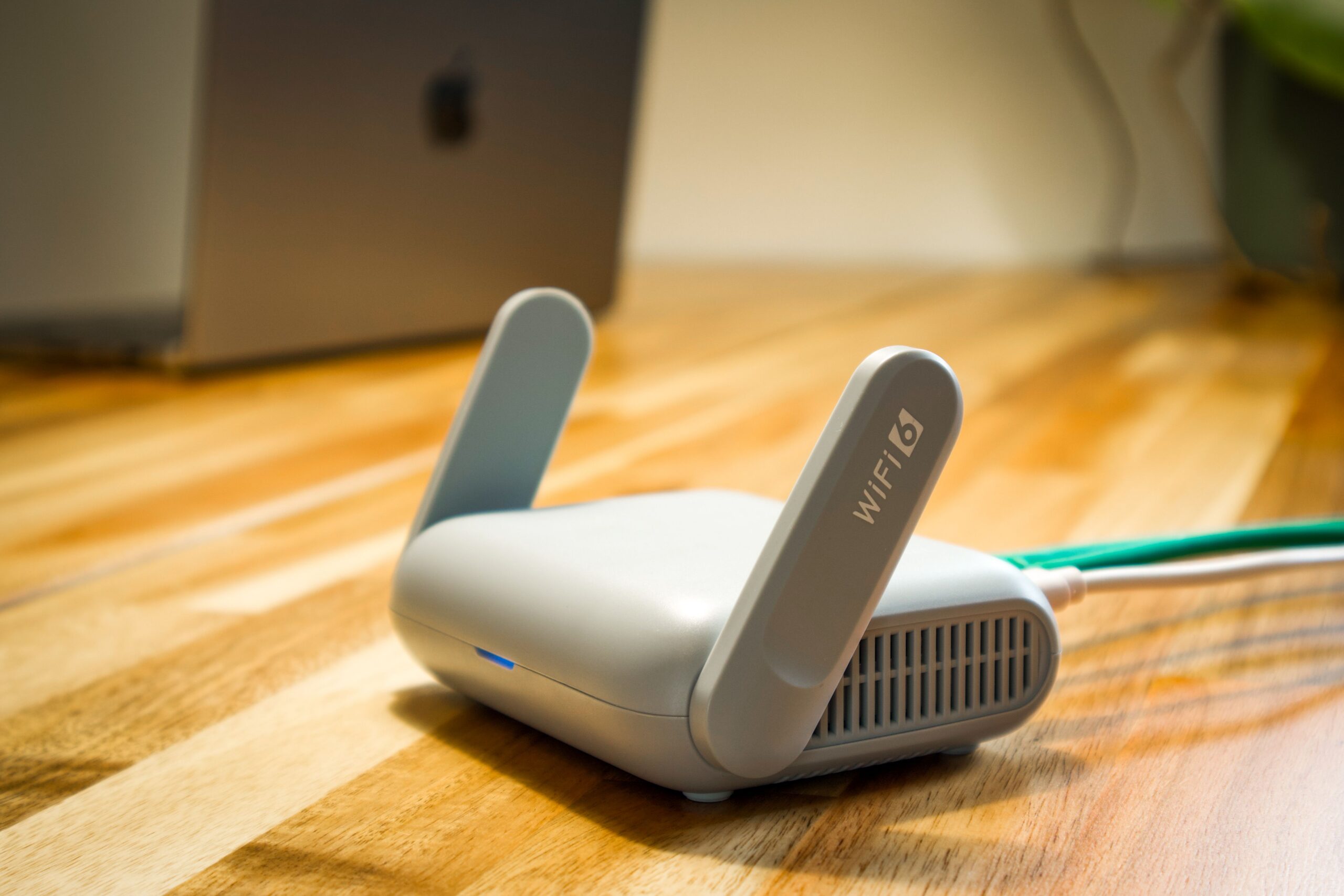
Your router may offer two Wi-Fi networks, or just one with automatic switching, yet the TV still buffers and a smart bulb refuses to connect. The 2.4 GHz and 5 GHz labels do not refer to two different internet plans. They are radio frequency bands used by the router to communicate with devices, and each behaves somewhat differently.
The 2.4 GHz band generally has a longer range and passes through obstacles more easily, but it is often congested and offers less room for high speeds. The 5 GHz band is generally better for a fast connection close to the router, but its signal weakens more quickly through several walls. Actual results depend on the specific device, interference and the layout of your home, not just the number in the network name.
What the GHz figure actually means
Gigahertz is a unit of electromagnetic wave frequency. A router sends and receives information using radio waves in specific permitted parts of the spectrum. A band label does not directly indicate data transfer speed: a 5 GHz network does not mean five gigabits per second, and 2.4 GHz does not mean 2.4 gigabits.
Speed is also determined by the supported Wi-Fi generation, channel width, number of antennas, signal quality and the devices connected at the same time. The same band can therefore deliver very different results in two homes. Likewise, an excellent Wi-Fi signal will not fix a slow or overloaded connection from your internet provider.
Why 2.4 GHz reaches farther
Under typical home conditions, a lower frequency propagates more favorably over longer distances and often penetrates walls better than 5 GHz. If your router is in the living room and you use your phone behind two interior walls, the older band may provide a more stable connection. However, it is not guaranteed to reach every corner of the house.
Wall construction, reinforced concrete, metal doors, mirrors, large appliances and the router’s placement can significantly alter the outcome. Do not rely on universal promises of coverage over a specific number of metres. TP-Link identifies differences in range and penetration as general characteristics of the bands, while also noting the importance of environmental conditions.
Good range does not necessarily mean high speed. A device may still show that it is connected with a weaker signal, but data transfer may fluctuate and video calls may stutter. This is a reason to compare the bands in the specific room rather than automatically ordering a more expensive internet plan.
Why 5 GHz is often faster
The 5 GHz band generally offers more suitable channels and more room for data communication. In an apartment building where all neighbours use the congested 2.4 GHz band, this can be a major advantage. The router and laptop must also support the relevant Wi-Fi capabilities; simply renaming a network will not create more speed.
That is why 5 GHz is often a sensible choice for a TV, game console or laptop in the same room as the router. However, if several thick walls stand between the device and the router, the faster band may perform worse in practice than the more stable 2.4 GHz band. The best result is one with a low error rate and consistent performance, not the highest one-time figure in an app.
Intel also compares frequency bands in terms of interference and the number of available channels. In homes with older devices, 2.4 GHz is often more heavily used because many other electronic devices use it as well. However, the speed difference is not fixed: it depends on the specific standard and settings.
What interferes with 2.4 GHz
In addition to neighbours’ networks, this band can be affected by wireless accessories, some older phones and a microwave oven while it is operating. Interference can result in lower throughput, latency or temporary dropouts. Moving the router by a metre or two may change the result, but it may not eliminate every source of interference.
Overlapping Wi-Fi channels can also be a problem. For 2.4 GHz at the usual 20 MHz width, channels 1, 6 and 11 are often cited as non-overlapping options; the specific permitted channels and automatic settings depend on the country and the product. Do not blindly increase channel width to the maximum, as this can increase mutual interference.
Nor is 5 GHz completely empty. Some channels may be subject to the DFS mechanism for protecting radar systems. When radar is detected, the router may change channels and devices may disconnect briefly. This does not automatically mean that there is an internet outage or a problem with your provider.
Which devices should connect to which band?
Smart bulbs, smart plugs and older devices often support only 2.4 GHz. Check the technical specifications before buying and when pairing the device for the first time. If the app cannot find the device, temporarily separating the band names may help, but the specific procedure varies by manufacturer.
A TV and console close to the router may benefit from 5 GHz, especially if you watch high-resolution video or download large files. For a device in a workshop, garage or distant room, try 2.4 GHz and compare stability. If the TV can be connected using an Ethernet cable, a wired connection can eliminate an entire category of radio interference problems.
Phones and laptops usually support both bands. You can let them select automatically, but if they keep connecting to an unsuitable network, it makes sense to test a manual connection as well. Measure the results in the same room and under similar load.
One shared network or two names?
Features such as Smart Connect or band steering can direct devices to the appropriate band under one shared network name. This is convenient because you do not need to switch Wi-Fi manually. However, not every router and client makes the same decisions, so a device may sometimes remain connected to the band that does not perform best in that room.
Two names are useful for troubleshooting or for problematic devices. By themselves, however, they will not increase antenna performance. If you separate the networks, use strong security and up-to-date firmware on both, as well as a password you do not unnecessarily give to visitors. A guest network is a separate feature and should not be confused with splitting 2.4 GHz and 5 GHz.
How to find out which band really performs best at home
Go to the room where the problem occurs and use the same device to measure both speed and latency on each band. Try repeating the test at different times, as interference from neighbours can vary. Also watch for dropouts during an ordinary task, such as a video call, rather than relying only on the result of a single measurement.
If both bands are weak, address the router’s placement, its configuration or an additional access point. If only one particular network is weak, the cause may be channel width, interference or device compatibility. Choosing a band is a practical tool, not a universal solution to every internet problem.
Sources
- Intel – 2.4 GHz vs. 5 GHz vs. 6 GHz: What's the Difference? (range, interference, channels and band capabilities) – https://www.intel.com/content/www/us/en/products/docs/wireless/2-4-vs-5ghz.html
- TP-Link – The differences between 2.4GHz and 5GHz Wireless (practical differences between the frequencies) – https://www.tp-link.com/us/support/faq/499/
- TP-Link – Smart Connect: What It Is and How to Enable It (automatic band selection) – https://www.tp-link.com/us/support/faq/2595/

Gabriel Čatár
I'm interested in everyday things we encounter but don't always understand. From technology and personal finance to practical guides and fascinating facts about the world. At Offpitch, I focus on topics worth exploring in greater depth, checking the facts and explaining them in a clear, accessible way. My goal is to make sure readers take away something useful from every article.


