
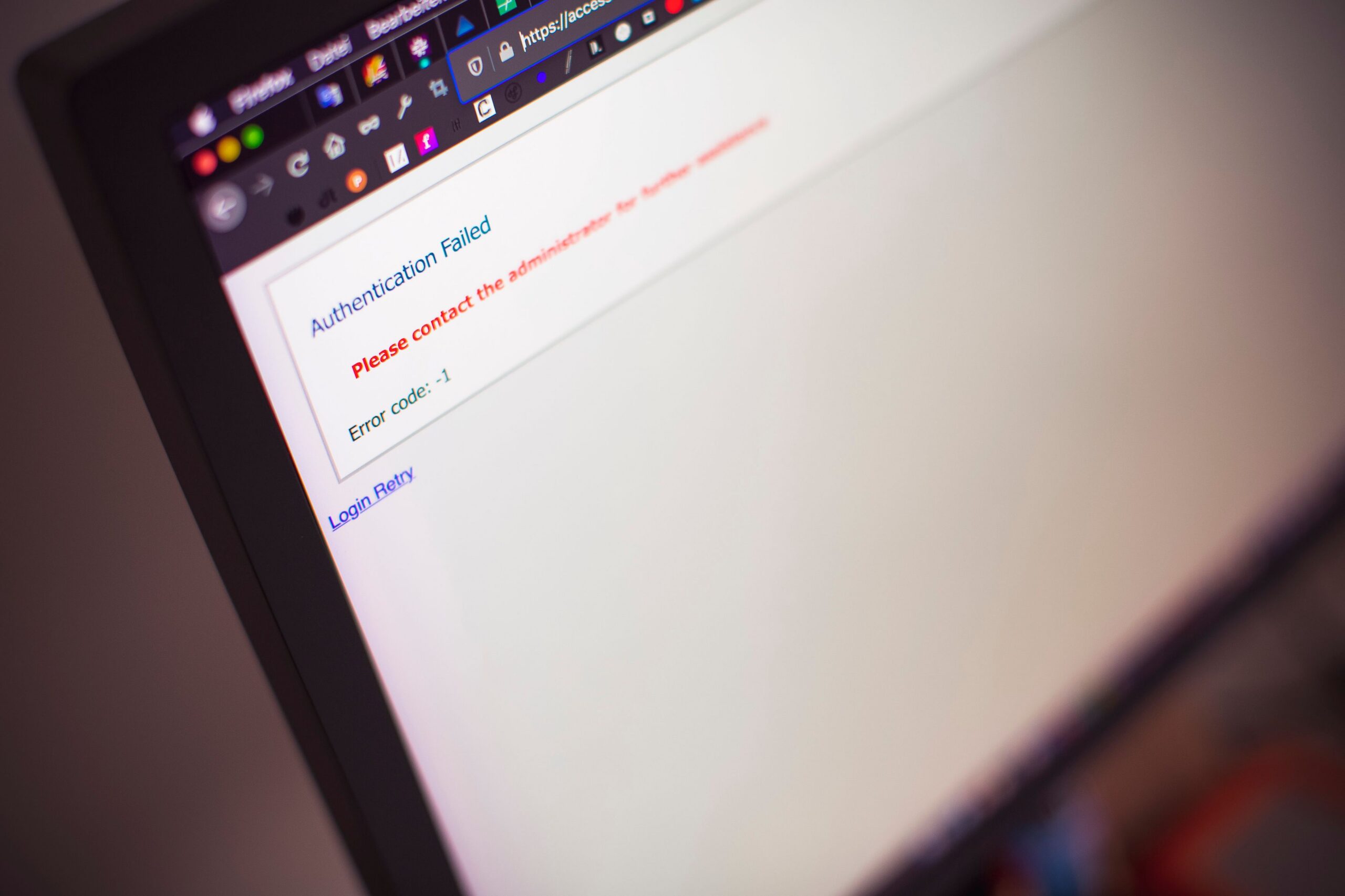
A forgotten password can cut you off from email, photos, work documents, and services you pay for. In a rush, it is easy to click the first search result or reply to someone pretending to be technical support. The safe approach is simpler than it seems: start with the official service and verify that you own the account.
Reset a forgotten password only through the service’s official app or website. Open the sign-in page, select “Forgot password?”, and complete verification using an available trusted method. Never send one-time codes or passwords to anyone, do not rely on unknown “account recovery” services, and once you regain access, set a new unique password and update your recovery contact details.
First, check whether you really need to reset your password
If you have not opened the account for a while, the password may be saved in your browser’s or phone’s password manager. Check only your own devices and your own password manager; do not look for the details in old public messages or documents. For a work or school account, the quickest route may be through the organization’s administrator, as the password may not be managed through the service’s usual public system.
Sometimes the problem is not a forgotten password. Sign-in may be blocked by a second verification factor, a changed phone number, a security alert, or a temporary technical outage. Read the exact message carefully. Repeatedly creating a new password will not help if the issue is a missing verification code.
If the account is still signed in on another device you own, do not impulsively sign out of all sessions. First, try to add a current recovery email address, phone number, or backup methods in the account security settings, depending on what the provider offers. The service may require you to verify your identity again before changing sensitive settings.
The right approach: open the service yourself, not through a suspicious link
Type the service’s known domain into the address bar or open its official app. On the sign-in page, select password recovery. If you use Google, its recovery tool guides you through questions to confirm account ownership and lets you set a new password after verification. Microsoft similarly requires identity verification, for example with a code sent through an available contact channel.
Check the full domain name. A page may use the logo and colors of a familiar service while running at a completely different address. If you receive a suspicious email with the subject line “Your account will be blocked,” do not rush to click it: first open the service independently and check whether the same alert appears there.
If a code arrives even though you did not request a recovery, do not treat it as an invitation to verify your account. It may be another user’s mistake, but it could also be an account takeover attempt. Do not send the code to anyone and, depending on the circumstances, check your account activity directly on the official site.
What if you no longer have the original phone number or recovery email?
This is often when recovery is most difficult. Some services let you use other methods that were set up previously, such as a backup code, security key, or trusted device. Others require automated verification through questions about the account. The specific options vary, and the provider may change them depending on the risk level and account settings.
Google recommends answering recovery questions as accurately as possible. If the account is managed by an employer or school, contact its administrator. If the service cannot confirm that you own the account, it may not be possible to restore access. It is not safe to try to bypass the checks through unknown websites or send copies of identification documents to someone without a verified connection to the provider.
When verification options are unavailable, Microsoft directs users to its official sign-in helper. It also explains that its support staff cannot arbitrarily send a reset link or overwrite an account’s security details. A promise from another company that it can unlock everything “for a fee” is therefore no reason to trust it.
Your new password must not simply be the old one with one extra digit
After a successful recovery, create a separate strong password that you do not use for any other account. If you use the same password for an online store, social network, and email, a breach at one service can put the others at risk. A long, unique passphrase or a randomly generated password stored in a trusted password manager reduces the need to remember dozens of combinations.
If you use a password manager, secure access to it separately as well. One weak primary account should not be the key to everything. Use two-step verification and store any available backup codes safely if the service offers them. Your backup should not be kept on the same single device whose loss would leave you without every recovery option.
If a passkey is available, it can be an alternative to a traditional password or an additional sign-in method. Even then, however, you need to understand how to recover the account if you lose your device. No method is worry-free unless you prepare recovery options in advance.
Why your email account is the most sensitive one
Your primary email account is often used to reset passwords for other services. Anyone who takes over that account may try to reset access to social networks, online stores, or work tools. After recovering your email, it is therefore worth checking active sessions, connected devices, automatic forwarding rules, and security contacts. An unknown forwarding rule may allow someone else to continue receiving your messages.
If you suspect your account has been compromised, proceed from a trusted device. Change the password, end unknown sessions where the service allows it, and check other accounts where the same password was used. For payment services, review transactions as well; restoring sign-in access alone does not prove that no one did anything in the meantime.
The most common password recovery traps
Fake support may say that it needs a one-time SMS code to confirm your identity. In fact, that code may give it access to your account. Another scammer may offer paid software that supposedly can “crack” the login for a major platform. Using such a program can result in stolen data or malware being installed.
Also watch out for messages urgently telling you to “cancel a recovery request.” The link may lead to another fake page. Check the official status directly in the app instead. If you are not sure whether you are speaking to real support by phone, end the call and find the contact details independently.
Ultimately, password recovery is also a good opportunity to check whether your account has an up-to-date recovery contact, a secure second method, and a unique password. The best time to prepare for another loss of access is while the account is still available.
Sources
- Google – How to recover your Google or Gmail account – https://support.google.com/accounts/answer/7682439?hl=sk
- Microsoft Support – Reset your Microsoft account password when you have forgotten it – https://support.microsoft.com/sk-sk/accounts-billing/manage/reset-a-forgotten-microsoft-account-password
- Federal Trade Commission – How to handle unexpected calls that claim your money is at risk – https://consumer.ftc.gov/consumer-alerts/2026/01/how-handle-unexpected-calls-claim-your-money-risk

Gabriel Čatár
I'm interested in everyday things we encounter but don't always understand. From technology and personal finance to practical guides and fascinating facts about the world. At Offpitch, I focus on topics worth exploring in greater depth, checking the facts and explaining them in a clear, accessible way. My goal is to make sure readers take away something useful from every article.


