
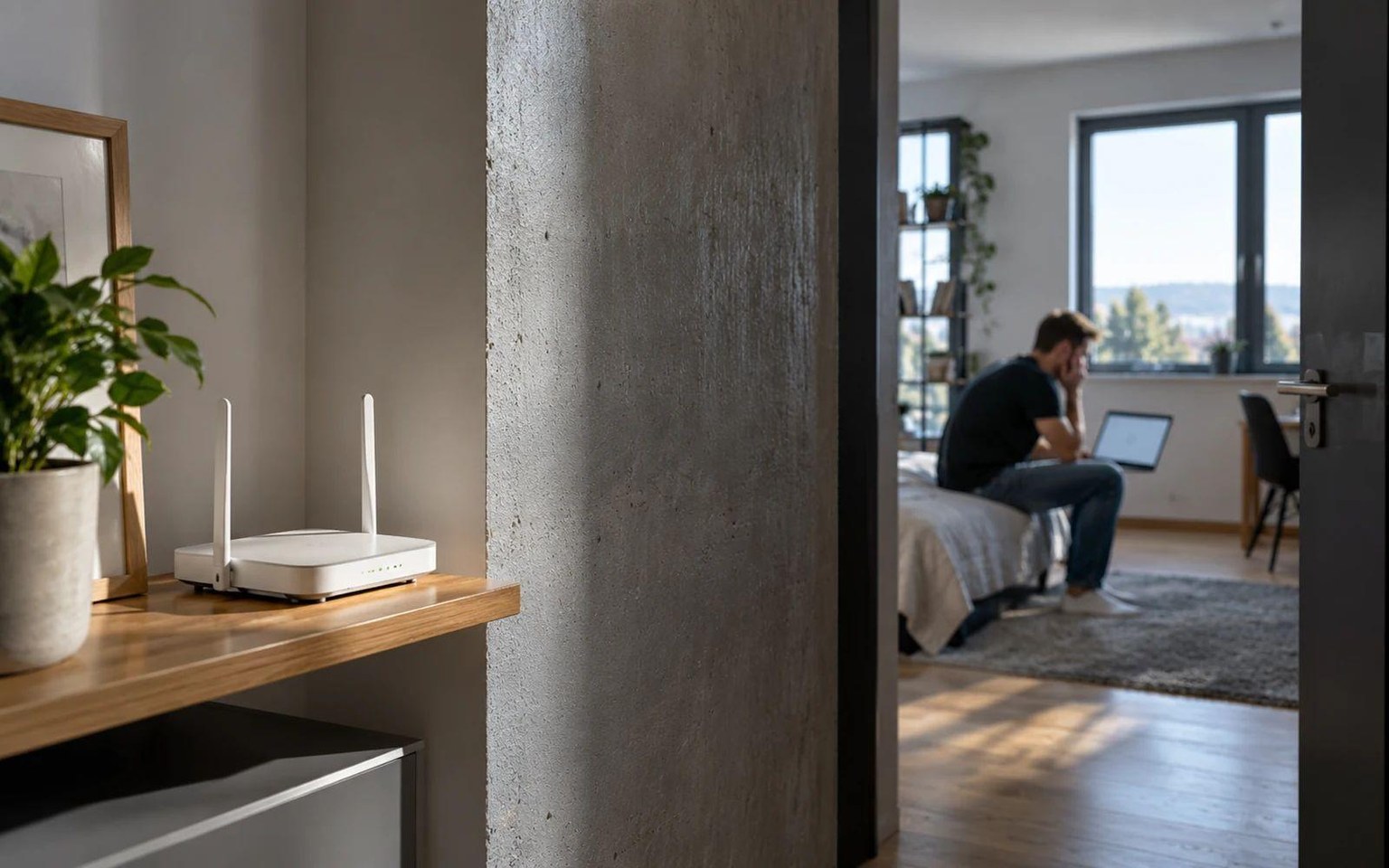
Have you changed roommates, shared your password with too many people, or want to replace the simple code printed on your router’s label? You can change your home Wi-Fi password in the router’s administration settings, often through the manufacturer’s mobile app as well. However, once you save the change, devices using the old password will be disconnected, so it is worth preparing in advance.
You can change your Wi-Fi password in your router’s wireless network settings, usually under Wireless, Wi-Fi, or Network. Sign in to your device’s management interface, find the network name (SSID), set a new strong password, and save the change. You can then reconnect phones, TVs, and smart plugs using the new password. Note: the Wi-Fi password is not the same as the password for signing in to the router’s administration interface.
First, prepare access to the router
Find out the manufacturer and model of your router. You can find them on the device label, in documents from your operator, or in its app. Management may be available through a web address or a mobile app. With a router supplied by an internet provider, some settings may be locked and changes may need to be made in the customer portal, so do not blindly try universal passwords or random web addresses.
Before making changes, write down the current network name and prepare the new password somewhere safe. If possible, connect a computer to the router with an Ethernet cable. Changing the password may immediately interrupt the computer’s or phone’s wireless connection. A cable lets you continue configuring the router without having to sign in to Wi-Fi again.
Steps using the web administration interface
- Connect to your router and open its correct address, as listed on the label or in the user manual.
- Sign in using the router administration password. It is not automatically the same as the wireless network password.
- Open the wireless network section, typically called Wireless, Wi-Fi Settings, or Network.
- Look for the network password field. It may be labelled Password, Wireless Password, or WPA-PSK Key.
- Enter the new password, check the security mode, and save the settings.
- After a possible restart, reconnect your devices using the new password.
The exact menu name varies by manufacturer, model, and firmware version. For example, TP-Link lists the setting under Wireless Settings, while ASUS distinguishes between several generations of its user interface. If the page does not match a screenshot in instructions for a different model, do not try to find the exact same button at all costs; open the documentation for your own device.
How to change the password using a mobile app
For compatible routers, using the manufacturer’s or operator’s official app is often convenient. In the app, find network management, the Wi-Fi name, and the password field. Save the new details and wait for the router to update its settings. When your phone disconnects, select the network and reconnect with the new password.
Download the app from an official store and check the publisher. Do not enter the administrator password on a random page that imitates a router sign-in form. If the device is managed exclusively through an operator account, follow its procedure; it may not offer exactly the same options as a separately owned router.
Which password to choose and what to avoid
Use a long, unique password that you have not used for email, banking, or any other service. A longer random combination or a passphrase containing several unrelated words may be suitable if your router supports it. Do not choose your family name, address, date of birth, or a simple sequence of numbers. Also test whether your older devices can use the selected network mode.
On newer devices, prefer WPA3-Personal if the router and all required devices support it. For older devices, WPA2-AES or a compatible mode recommended by the manufacturer may be an alternative. Outdated WEP or an open password-free network are not adequate substitutes simply because an old printer can connect to them. Address compatibility problems separately, for example by using an appropriately secured network for older devices.
What happens to your TV, printer, and smart devices
After you change the password, devices retain the old saved credentials. A phone will often prompt you to enter the password again automatically; a TV, printer, or smart plug may require you to open its own menu or pair it again. Before making the change, list devices that may not be immediately obvious: a camera, thermostat, robot vacuum, or smart home bridge.
If you use one shared name and password for the 2.4 GHz and 5 GHz bands, the setting may apply to both. If the bands have separate names, you may need to change the password in each profile separately. The exact procedure depends on Smart Connect and other router settings. If only one device cannot connect after the change, first check its saved password and compatibility rather than automatically blaming internet speed.
The Wi-Fi password and administrator password are two different things
The Wi-Fi password allows a device to join the wireless network. The administrator password protects the router settings, including the ability to change networks and other parameters. Changing one therefore does not automatically change the other. If the router has been set up with a simple administrator password, change that too in its separate settings section. Do not use the same password for both purposes.
If you do not remember the administration login details, check the recovery options with the manufacturer or operator. A factory reset is a last resort: it may erase the configuration for your connection, telephone service, and custom networks. Before resetting, make sure you have the details needed to set up the service again.
When no one can connect after the change
Check whether you also changed the network name, enabled incompatible security, or accidentally disabled a wireless band. Connect by cable, or use the official app, and check the saved settings. If the connection works only on some devices, it is probably an individual problem with a saved profile or security support.
Changing the password is a good step after sharing access or if you suspect an unknown device is connected. However, it will not by itself resolve malware on a computer or stop a device that still has access to a separate account. Along with setting a new password, check firmware updates, administrator login settings, and the list of connected devices.
Sources
- TP-Link – How to change wireless settings on TP-Link Wireless Router – https://www.tp-link.com/us/support/faq/1217/
- ASUS – How to modify Wireless (WiFi) Name and Password in ASUS Router? – https://www.asus.com/us/support/faq/1011433/
- ASUS – How to change ASUS router login name and password? – https://www.asus.com/support/faq/1047761/

Gabriel Čatár
I'm interested in everyday things we encounter but don't always understand. From technology and personal finance to practical guides and fascinating facts about the world. At Offpitch, I focus on topics worth exploring in greater depth, checking the facts and explaining them in a clear, accessible way. My goal is to make sure readers take away something useful from every article.


