
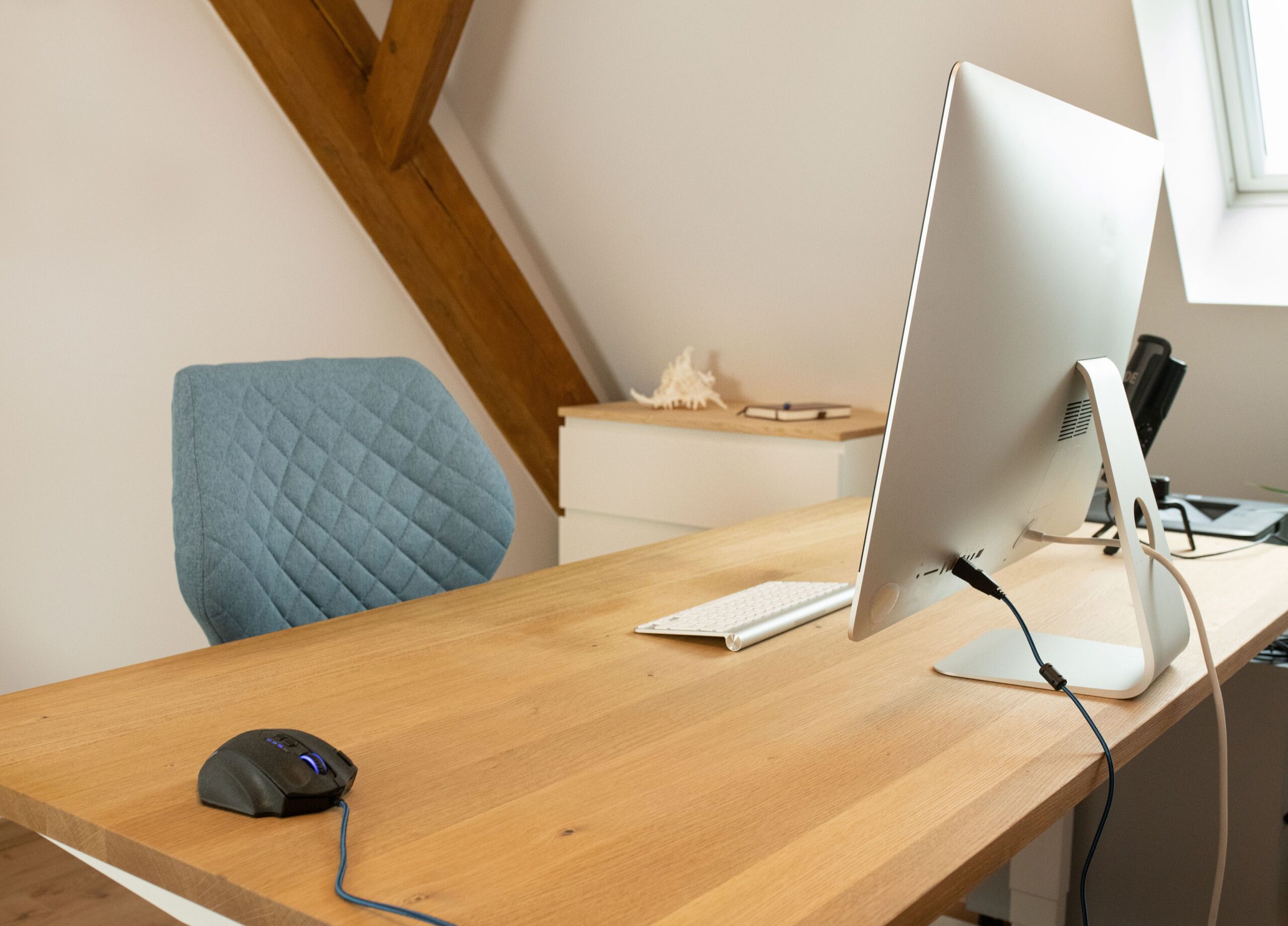
You can work for eight hours on a kitchen chair with a laptop sitting low on the table, but eventually your body will start asking for a change. Your neck is bent, your shoulders are tense, and a window shines into your eyes during video calls. The good news is that you can improve the basic conditions of your workspace without buying all-new furniture or expensive ergonomic accessories.
Set up your home workspace around your own posture, not around a photo of a perfect office. Your chair should support your back and allow your feet to rest firmly, your monitor should be roughly in front of you at a suitable height, and your keyboard and mouse should be within reach without having to stretch your shoulders. With a laptop, a stand combined with an external keyboard can help. Light, movement and regular changes of position also matter.
Choose the location first, not the furniture
An ideal workspace does not need to take up a separate room. What matters more is whether there is room for a monitor, keyboard and mouse, and whether you have enough legroom. The UK's HSE emphasizes that a suitable, sustainable working position is not dependent on owning expensive office furniture, but the equipment itself must be appropriate for the user's needs.
When choosing a location, consider noise, foot traffic and lighting. A desk in a narrow hallway may save space, but frequent passing by other household members can make it hard to concentrate. If the monitor is directly opposite a window, the light may cause glare. If the window is behind you, it may reflect on the screen.
Do not try to solve insufficient light simply by turning the monitor brightness up to maximum. It is better to adjust the direction of the light, the monitor position or the shading. Lighting should let you read text on the screen and documents on the desk comfortably, without unpleasant glare.
Chair: start with your feet and support
Sit so that your feet are firmly supported by the floor or a footrest. Your thighs should not be pressed against a sharp seat edge, and your back should have adequate support. In its guidance, OSHA emphasizes that a properly adjusted chair supports the back, legs and seated body, helping to limit awkward postures.
If the desk is too high, your shoulders may be raised while typing. Raising the chair may help you reach the keyboard, but then your feet may no longer reach the floor. In that case, it is worth addressing the footrest or work-surface height rather than making one adjustment at the expense of another.
A very soft seat can be problematic for long periods of work because your body gradually sinks into it and your distance from the keyboard changes. That does not mean everyone needs the most expensive ergonomic chair. Adjustment, support and the ability to stand up occasionally are what matter. There is no single “correct” position for an entire morning.
Monitor at the right height and distance
Place the monitor in front of you so you do not have to keep turning your head for long periods. For desk workstations, OSHA suggests a guide distance of at least about 50 centimetres and emphasizes an appropriate viewing angle. Exact placement may vary depending on screen size, vision and individual needs.
If you have multiple monitors, the main one should be in front of you if you spend most of your time working on it. With two equally used screens, arranging them symmetrically may be more suitable. Do not place a monitor you use continuously far off to one side simply because it looks good in a desk photo.
The top of the screen is often positioned roughly at eye level or slightly lower, so that you do not need to tilt your neck back during normal viewing. If you wear bifocal glasses or have other visual needs, the suitable height may be different. The basic test is a comfortable, neutral head position, not blindly following a single measurement.
Laptop: why a stand alone is not enough
A laptop has its keyboard and screen permanently connected. When you raise its display to a comfortable height, the built-in keyboard may be too high for typing. When you place the laptop low down, your hands may be in a better position, but your neck bends toward the display. OSHA notes that this design creates particular ergonomic challenges.
For longer work sessions, it is often practical to separate these two components: use a stand or external monitor together with a separate keyboard and mouse. The stand does not have to be expensive, but it must support the laptop securely and not block its ventilation openings. The setup should remain stable during normal movement at the desk.
If you use a laptop only briefly or occasionally, there is no need to buy everything at once. Notice which position makes you bend your head unnaturally or raise your shoulders. That specific discomfort can show which simple accessory would be most useful to get first.
Keyboard, mouse and desk space
Move the keyboard close enough that you do not have to reach far forward. Your elbows should stay roughly close to your body and your wrists should remain in a natural position. Place the mouse next to the keyboard, not far away behind papers, a mug and chargers. OSHA recommends keeping frequently used devices in the primary work zone.
A full-size keyboard with a numeric keypad can push the mouse farther to the right. Some people do not mind this, while others may benefit from a more compact option. This is not a universal buying recommendation, but an example of how a specific layout affects arm and wrist position.
Hard, sharp desk edges can press uncomfortably against your forearms. If you rest on them while working, adjust the keyboard distance or the way you support your arms. Keeping the leg area clear is equally important: boxes and extension cords under the desk should not prevent you from moving comfortably or changing position.
Light, temperature and noise
Plenty of daylight is pleasant, but it needs to be controllable when using a monitor. A bright window behind the screen can create uncomfortable contrast. A window behind you, on the other hand, can cause reflections. Moving the desk slightly to one side may solve more than an expensive lamp.
For video calls, pay attention to what the camera sees. Backlighting can obscure your face even if you can see the screen well yourself. If you need privacy for calls, agree on rules with others in your household or use headphones as appropriate. This is not only about comfort: when handling sensitive work data, you must also ensure that visitors cannot accidentally read what is on the screen.
Temperature and drafts also affect comfort. At a desk directly next to a radiator or beneath air conditioning, part of your body may be exposed to an uncomfortable airflow for extended periods. Adjust the desk position before trying to compensate for the problem with more equipment.
Breaks and changes of position are part of the setup
The HSE states that when working with a screen, short, frequent breaks or changes of activity are more useful than infrequent, long breaks; it gives a few minutes during each hour as an example. This is not Slovak legislation or a universal medical regimen, but a practical principle for organizing work.
Stand up, walk to get some water or complete a short task away from the screen. Changing position helps interrupt long periods of static sitting. A height-adjustable desk can be pleasant, but it does not replace movement if you merely swap eight hours of sitting for eight hours of standing still.
If pain, numbness or other difficulties persist while you work, simply buying a mouse pad is not enough. It is advisable to address your workspace setup and, depending on the nature of the problem, seek professional healthcare advice. This text does not provide an individual diagnosis.
A one-day review process
In the morning, sit down and notice the position of your feet, spine, shoulders and head. Then adjust the distance of the keyboard and monitor. After the first hour, check whether you are slipping back into bending your neck or reaching out for the mouse. In the evening, assess what was better and what still bothers you.
This helps you distinguish a specific problem from an advertising promise that a single expensive chair will solve it. An ergonomic workspace is the result of many small decisions that must suit your body, tasks and space. Most of them can be tested before you buy new furniture.
Sources
- OSHA – Computer Workstations eTool (workstation principles and individual posture) – https://www.osha.gov/etools/computer-workstations
- OSHA – Workstation Components (chair, monitor, keyboard and laptop) – https://www.osha.gov/etools/computer-workstations/components/
- HSE – Working with display screen equipment at home (working from home and appropriate equipment) – https://www.hse.gov.uk/msd/dse/home-working.htm
- HSE – Work routine and breaks (short breaks and changes of activity) – https://www.hse.gov.uk/msd/dse/work-routine.htm

Gabriel Čatár
I'm interested in everyday things we encounter but don't always understand. From technology and personal finance to practical guides and fascinating facts about the world. At Offpitch, I focus on topics worth exploring in greater depth, checking the facts and explaining them in a clear, accessible way. My goal is to make sure readers take away something useful from every article.


