
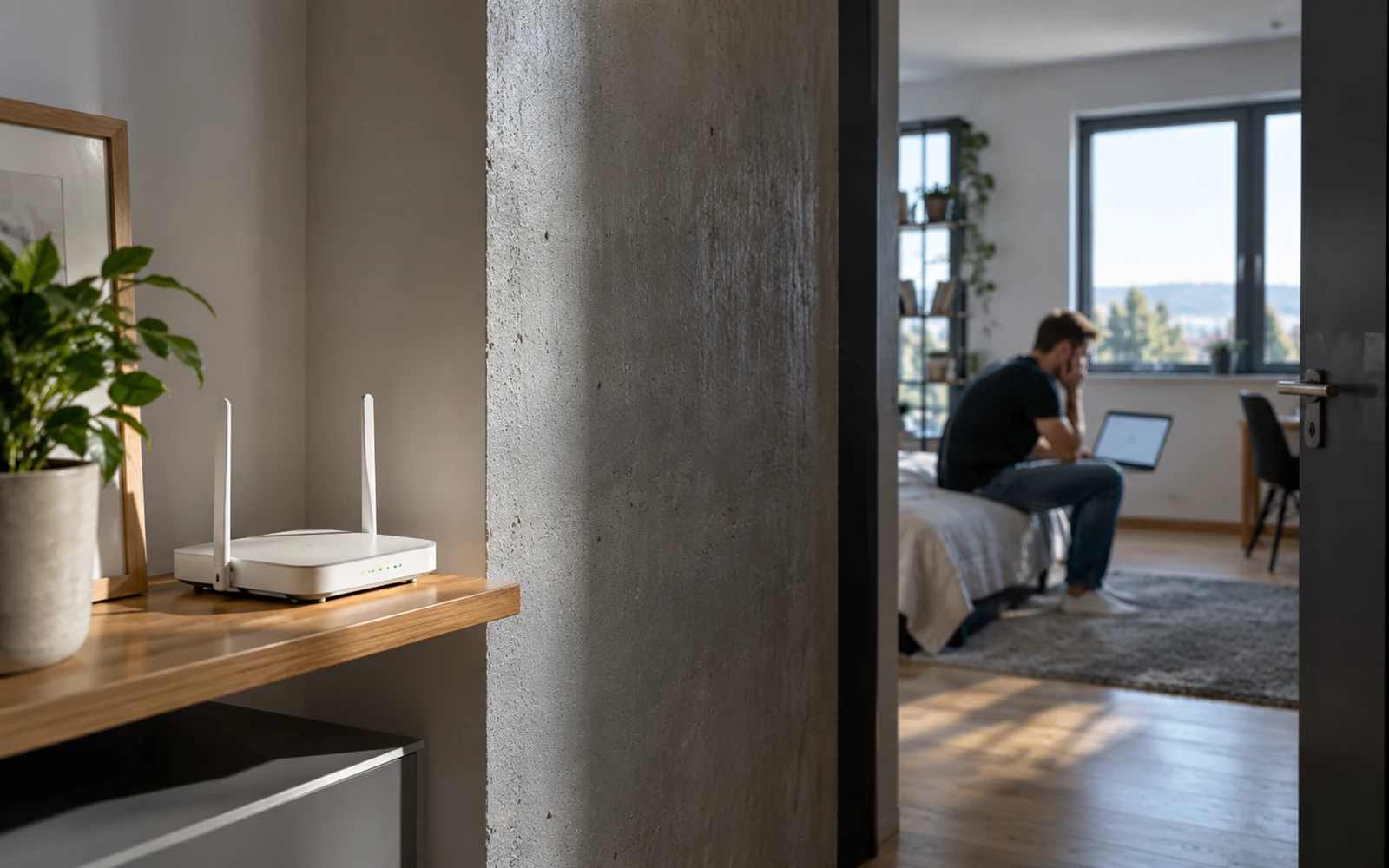
You usually get a router from your internet provider, plug it in, and do not think about it again for years. Meanwhile, laptops, phones, TVs and smart-home devices connect to it. If it is left with a weak password or outdated firmware, the problem is not limited to who can join the Wi-Fi network. The device’s own administrative access may also be vulnerable.
You can secure your home router primarily by using a strong, unique administrator password, appropriate Wi-Fi encryption (preferably WPA3, or WPA2-AES), up-to-date firmware, and by disabling features you do not need. Set a separate Wi-Fi password and router administrator password. Also check external access and connected devices. A one-time setup is not enough if the manufacturer later stops releasing security updates.
First, distinguish between two different passwords
You enter the Wi-Fi password on your phone or laptop when connecting to the wireless network. The administrator password is used to sign in to the router’s control interface, where you can change network settings, update software and manage devices. If you use the same or a very simple password for both, you unnecessarily link two separate levels of access.
During initial setup, verify the address of the administrative interface on the label, in the manual or in the manufacturer’s app. Do not assume that every router uses the same address and the username “admin.” With a device supplied by your internet provider, some details or settings may be managed centrally; if you are unsure what a change will do, check the terms of service.
The administrator password should not be the factory default
The U.S. Federal Trade Commission (FTC) recommends changing default administrator credentials and using unique login details. The password should not include the brand name, your address or a common combination that can be guessed easily. A password manager can help you create a long password without having to reuse it for other accounts.
If the router allows multiple administrator accounts, check that no unnecessary account has been left active. With rented devices, however, do not blindly remove your provider’s service settings: some may be necessary for the connection to work.
Choose the right Wi-Fi security
In the wireless network settings, look for WPA3-Personal security or WPA2-Personal with AES, depending on the capabilities of the router and all connected devices. The FTC recommends using current WPA3 or WPA2 encryption. Older modes such as WEP and the original WPA are not suitable choices simply because an old, rarely used printer still offers them.
When switching to WPA3, check compatibility with older devices. Some routers offer a mixed mode, but the specific trade-off between compatibility and security depends on the model. If you have a very old device that supports only outdated security, replacing it may be more sensible than weakening protection for the entire network because of it.
Firmware updates are not just cosmetic
Firmware is the software built into the router itself. Manufacturers use it to fix bugs, improve stability and address security vulnerabilities. In the administration interface, look for a section called “Firmware,” “System” or “Update” and check whether a newer version is available. If the router supports automatic updates, read the terms and consider enabling them.
When updating, follow the exact procedure and do not interrupt the power supply. Do not upload a file intended for a different model, even if it looks almost identical. If the manufacturer no longer provides updates and the device is significantly outdated, changing the password alone will not address all risks.
When can an old router be a problem?
The purchase date is not the only thing that matters. Check support for the specific model: the availability of security updates, supported encryption and the ability to disable unnecessary services. A router that is no longer supported by its manufacturer may still work on the internet, but newly discovered flaws may no longer receive a fix.
Disable remote management if you do not use it
Some devices allow you to change router settings over the internet while away from home. For most households, this type of access is unnecessary. The FTC recommends disabling services you do not use, including remote management. If you need it for a legitimate purpose, check for a secure access method based on recommendations from the manufacturer and your internet provider.
Similarly, check automatic port-opening features such as UPnP if you know about them and your network does not need them. However, disabling them may affect functionality for gaming consoles or other devices, so note the current setting before making a change and check the requirements of the specific application.
Guest networks and smart-home devices
Guest Wi-Fi can allow visitors to connect to the internet without sharing the password for the main network. If your router supports client isolation or separates access to the local network, check that it is enabled correctly. The name “Guest” alone does not guarantee complete isolation on every model.
Cameras, smart plugs or older devices may be suitable for a separate network if the router allows it. The FTC notes that a camera connected to a regular home network is another reason to keep software updated and use strong passwords. When separating devices, however, check whether their apps require communication with a phone on the main network.
How to find out who is connected to your Wi-Fi
In most administration interfaces, you can find a list of devices under “Connected devices,” “Clients” or “DHCP clients.” Review the names, approximate device types and connection times. An unfamiliar name does not automatically mean an intruder: it could be a TV, watch or phone using a randomized MAC address.
If you find a device you do not recognize even after checking all devices in your home, update the router, change the network password and review the management settings. If you suspect a more serious issue, a professional inspection and a safe device reset following the manual may help. Before performing a factory reset, however, back up any settings required by your internet provider.
An occasional check does more than an expensive purchase made blindly
Home network security is not just about the number of antennas or the price of the router. What matters most is knowing who manages it, which security it uses, when it last received an update and which services are exposed to the internet. If you check these things during installation and revisit them from time to time, you can avoid a number of unnecessary risks.
Sources
- Federal Trade Commission – Securing Your Internet-Connected Devices at Home – https://consumer.ftc.gov/articles/securing-your-internet-connected-devices-home
- Federal Trade Commission – How To Secure Your Home Security Cameras: Secure Your Home Network – https://consumer.ftc.gov/articles/how-secure-your-home-security-cameras
- Federal Trade Commission – Five things to do to protect yourself online – https://consumer.ftc.gov/consumer-alerts/2022/10/five-things-do-protect-yourself-online

Gabriel Čatár
I'm interested in everyday things we encounter but don't always understand. From technology and personal finance to practical guides and fascinating facts about the world. At Offpitch, I focus on topics worth exploring in greater depth, checking the facts and explaining them in a clear, accessible way. My goal is to make sure readers take away something useful from every article.


