
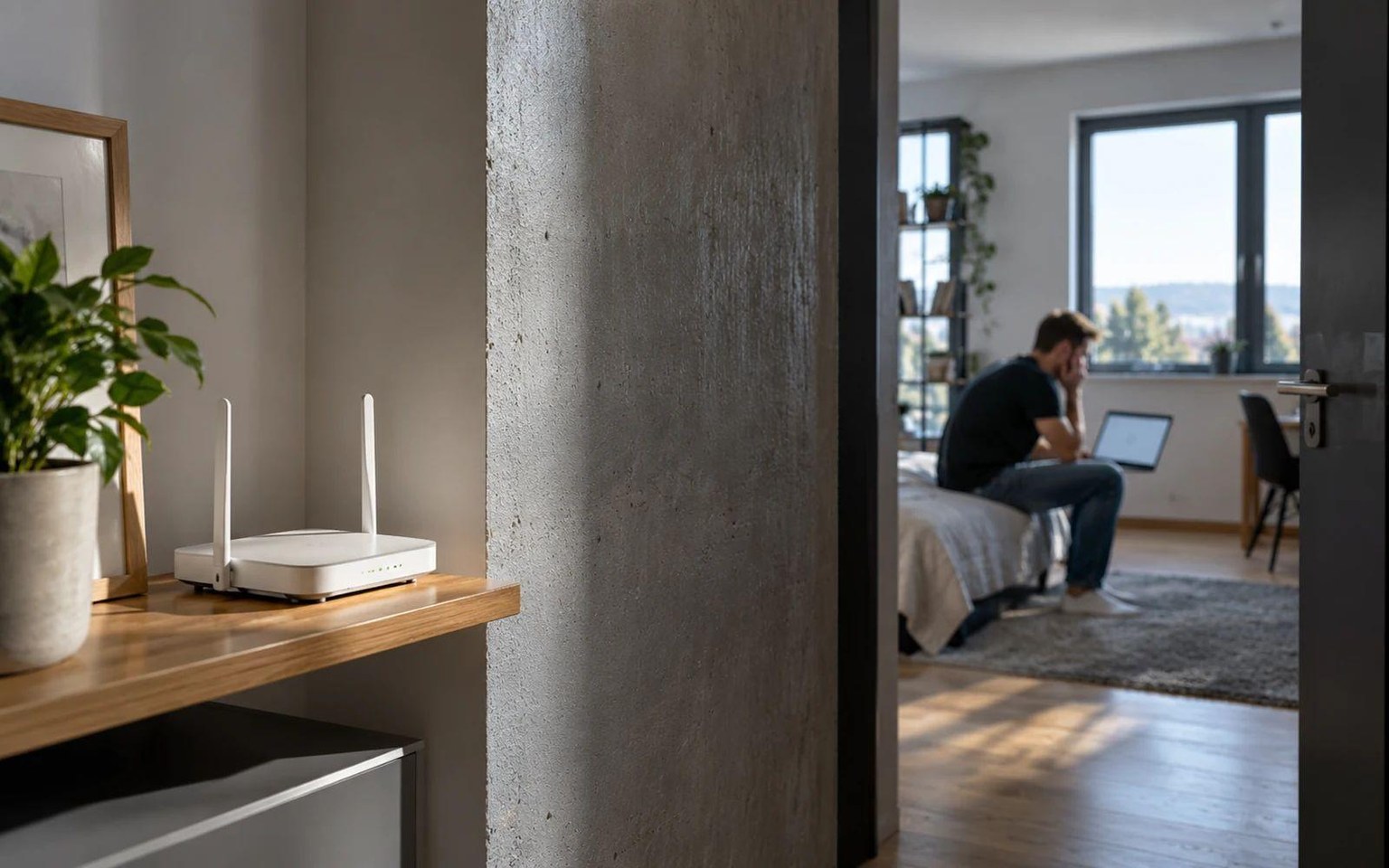
Your internet slows down in the evening, and you spot a device called “unknown” in your router app. Is it a neighbor who guessed your password? It could just as easily be your own TV, printer, or phone using a private MAC address. The list of connected devices is useful, but interpreting it requires more than simply counting the icons on the screen.
You can usually find out who is connected to your Wi-Fi in the router manufacturer's app or in its administration interface, under sections such as Clients, Connected Devices, or Wireless Clients. Compare the names, IP addresses, and MAC addresses with your own phones, TV, and smart devices. An unknown name is not proof of unauthorized access. If you are suspicious, identify the device first, then change the Wi-Fi password and secure the network.
Where to Find the List in Your Router’s Administration Interface
On home routers, menu item names vary by manufacturer and firmware. You can often find them on the main network map, in the Clients section, or under wireless settings. Some devices separate clients on the 2.4 GHz and 5 GHz bands, while others display everything in one shared list.
Connect your phone to your home network. Open the manufacturer's official app or the local administration address shown on the router label or in its documentation. Sign in using the administrator password. Do not confuse it with the Wi-Fi password: they may be the same only if someone has inadvisably configured them that way, but they serve different purposes.
For example, TP-Link describes a Clients tab in the Tether app that lists devices. On another model, the feature may be called Network Map, Device List, or Attached Devices. If the router was provided by your internet service provider, access may be restricted and some details may be managed in the provider's customer app.
What Device Names, IP Addresses, and MAC Addresses Mean
Device name is usually automatically reported by a phone or computer. It may not be reliable: the device may not send one, may use a generic name, or may appear as unknown. Some routers let you add your own label, so you can later tell that an anonymous entry is your kitchen smart plug, for example.
IP address is the device’s local address on the network, for example in the form 192.168.x.x. The router may change it over time, so it cannot be treated as a permanent identifier of a particular person. A guest network connection or another network device can also change what appears in the list.
MAC address identifies a network interface, but modern operating systems often use private or randomized addresses. TP-Link notes that this can make the same phone appear as a new or unknown client. A MAC address can also be spoofed, so it is not by itself proof of identity or a secure authorization method.
How to Recognize Your Own Devices Step by Step
Start with an inventory. Think of the phones of everyone in the household, laptops, TV, console, speaker, camera, robot vacuum, thermostat, smart bulbs, and guests’ devices. Internet of Things devices may be hidden in the list under the name of the chip manufacturer or an unusual label.
If you cannot match an entry to a device, safely turn off Wi-Fi on one of your own devices and check whether its entry disappears. Repeat only with devices you are authorized to access. Do not randomly disconnect security systems or devices needed to keep the household running.
Also check the last connection information. Some apps show currently active clients, while others also show historical records. As a result, the number of entries may not match the number of appliances that are currently switched on. An “offline” status is not the same as an actively connected neighbor.
Unknown Client: What to Do Without Locking Yourself Out
Write down the name, MAC address, and time of the last connection if your router displays them. First verify your own devices and guests. If the entry remains unknown or someone has accessed the network without your consent, restrict access through the router settings and change the wireless network password to a strong one.
When you change the password, most of your devices will need to sign in again. If you have older printers or smart-home devices, check which security standards they support, and do not weaken the entire network for the sake of a single outdated device. A separate guest or isolated network can be practical if the router supports it properly.
Blocking by MAC address can be an additional administrative tool. It is not a substitute for strong encryption and a password, because the address can be changed. TP-Link describes blocking options through its app in its guides, but the exact procedure varies by model and version.
Wi-Fi Security Settings Worth Checking
In your wireless network settings, check that you are using a currently supported secure mode, usually WPA3 or WPA2-AES, depending on device compatibility. Replace a weak or shared password with a long, unique one. Update the firmware according to the manufacturer’s official support guidance, and secure the administration interface with a separate password.
Check that remote administration from the internet or old connection features you do not need are not enabled unnecessarily. Remove devices you no longer use from lists of permitted exceptions. If the router is managed by your internet service provider, follow its documentation if anything is unclear and do not experiment with changes that could cut off your connection.
Why the Number of Devices Does Not Match the Number of People
One person may have a phone, watch, laptop, and TV. Conversely, one entry may represent another access point or a network topology that does not display every client directly. Differences also arise between the list of active wireless clients, wired devices, and the historical DHCP list.
So do not look only at a numeric badge saying “12 devices.” If the internet is slowing down, the cause may be interference, a weak signal, updates on your own devices, or a problem with your provider. The number of clients alone, without traffic data, is not proof of an unwanted connection.
When It Makes Sense to Contact Your Provider
If an unknown device returns even after changing the password and checking your own clients, take a screenshot of the administration interface and contact the manufacturer’s or provider’s support team. Do not publicly share login credentials, complete configuration backups, or unique device identifiers. More important than a dramatic search for a “hacker” is a verifiable process: find out what the router is actually showing and eliminate the weak point.
Sources
- TP-Link – How to Check Who's Connected to Your TP-Link Wi-Fi Router – https://www.tp-link.com/ph/blog/2462/how-to-check-who-s-connected-to-your-tp-link-wi-fi-router/
- TP-Link – Why is a device displayed as an unknown device on the Deco app? – https://www.tp-link.com/us/support/faq/3405/
- TP-Link – How to Block or Unblock a Device from Your Wi-Fi Network via Tether App – https://www.tp-link.com/us/support/faq/2584/

Gabriel Čatár
I'm interested in everyday things we encounter but don't always understand. From technology and personal finance to practical guides and fascinating facts about the world. At Offpitch, I focus on topics worth exploring in greater depth, checking the facts and explaining them in a clear, accessible way. My goal is to make sure readers take away something useful from every article.


