
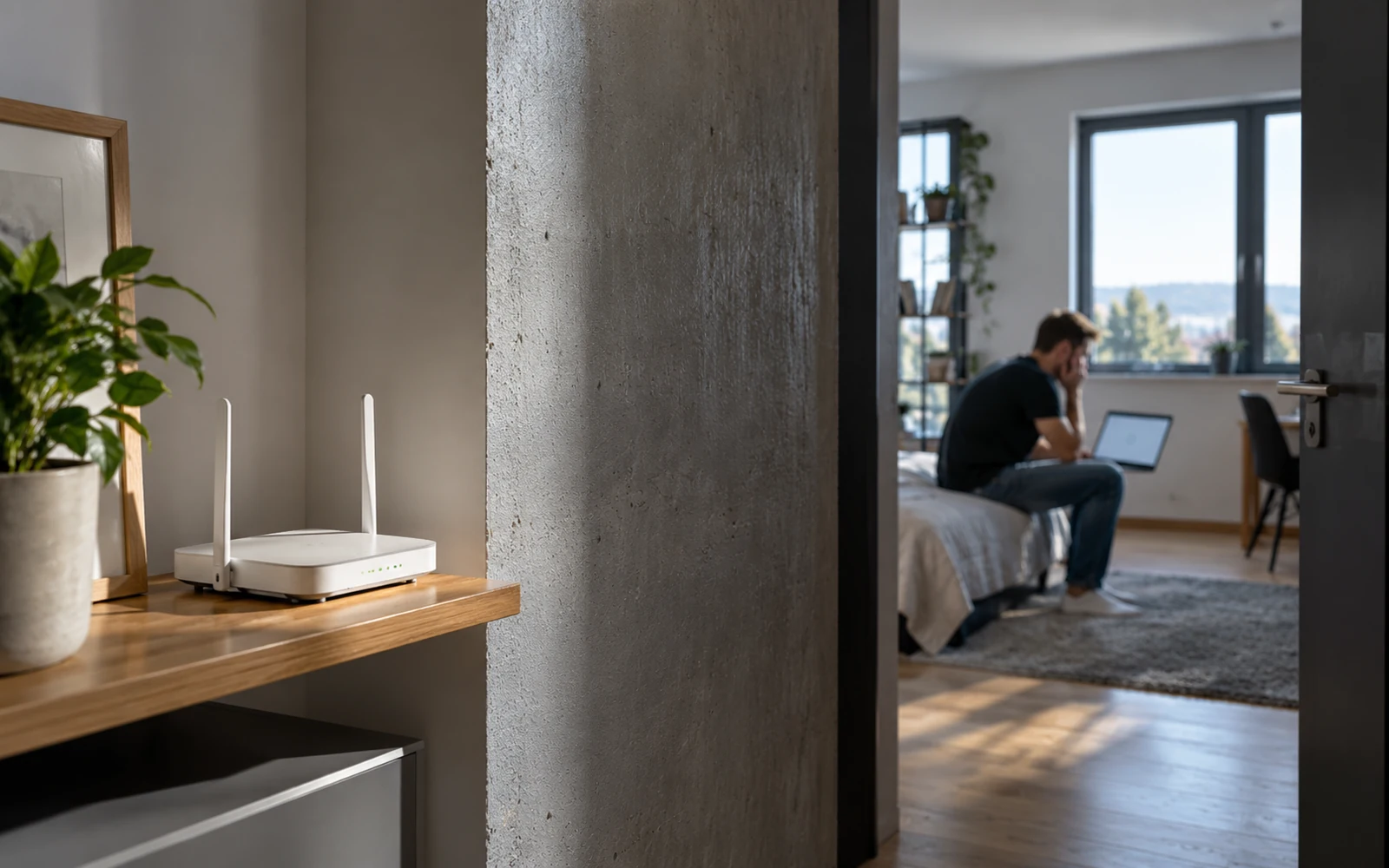
Video calls work flawlessly in the living room, but in the bedroom beyond two walls, your phone keeps connecting and disconnecting. At first glance, it may seem like the provider is to blame. However, if the problem occurs only in one part of the apartment, first look for the cause between the router and the device rather than automatically blaming the speed of your internet plan.
If Wi-Fi drops out in only one room, the most common causes are a weak signal, obstacles between the router and the device, interference, or an unsuitable frequency band. First, compare the connection near the router with the connection in the problem room, then try moving the router to a more open, central location. Changing your plan will not help if the radio signal simply does not reach the room with sufficient quality.
Wi-Fi signal and internet speed are not the same thing
Your internet connection links your home to the provider's network. Wi-Fi is the short wireless link between your home router and a phone, TV, or laptop. Even if the connection is fast, a device receiving a signal at the edge of its range may load pages slowly and drop video calls. Interference can cause the same symptoms even when the signal indicator does not look terrible.
Microsoft notes that the layout of your home has a major impact on the result: walls, floors, metal objects, and router placement all matter. Netgear also explains why higher-frequency bands may have shorter range in an apartment with a complex layout. That is why the number of signal bars on your phone tells only part of the story.
What most often creates a dead zone
A thick wall, floor, or metal furniture
Radio signals weaken over distance and when passing through obstacles. This depends on the material and its thickness: reinforced concrete, metal cabinets, utility shafts, or several walls can be a much greater barrier to the signal than a simple drywall partition. If the router is placed in the hallway behind an electrical cabinet, you cannot expect equal coverage in every corner of the apartment.
Your first step should be a small move, not buying new equipment. Place the router higher up on an open shelf, away from metal and closer to the center of the areas you use. If several rooms have problems, even moving it by one meter can change the number of obstacles between the router and your phone.
The 5 or 6 GHz band does not always reach across the entire apartment
In many situations, the 5 GHz band offers higher speeds and may be less congested than 2.4 GHz, but it generally penetrates obstacles less effectively. At 6 GHz, range is even more sensitive to distance. This is not an argument for using only one band in every situation: a higher frequency may work brilliantly near the router, while 2.4 GHz may be more reliable in a distant room.
If the router combines bands under one network name, the device may switch frequencies automatically. Some models allow you to temporarily separate the bands for diagnostic purposes. Change only settings you understand, and make a note of the original configuration so you can easily revert the change.
Interference from nearby networks and appliances
In an apartment building, several networks may overlap and compete for the same radio spectrum on the same channels. On 2.4 GHz, some household devices, such as a microwave oven or baby monitor, can also create interference. This does not mean a microwave will automatically disrupt internet access in every home; placement, frequency band, and the specific devices all matter.
A router can often select a channel on its own. If you have a reason to change it manually, first check band usage with a diagnostic app and review your router's capabilities. Without measurements, there is no point in blindly setting the highest transmit power or choosing a random channel.
A five-minute test: where exactly does the connection fail?
Take the same phone or laptop and, in quick succession, test the connection next to the router, in the doorway of the problem room, and where you normally work. Watch whether the device disconnects from Wi-Fi or remains connected while the internet fails to load. The first scenario points more toward range and the wireless link; the second can have several causes and needs further testing.
If everything works near the router and quality gradually declines behind walls, start with its placement. If the connection is weak even next to the router, check how another device behaves and, if possible, test a computer connected by cable. An outage over both cable and Wi-Fi at the same time may be related to the router or the provider's connection.
When the problem affects only one phone or laptop
If one phone connects without problems in the same room but another regularly drops out, compare their settings and updates. The difference may lie in the antenna, driver, power-saving mode, or support for frequency bands. Do not conclude that the router is faulty simply because it behaves poorly with one device.
When an extender, mesh system, or second access point can help
If moving the router is not enough, another access point connected by an Ethernet cable may be the solution. A mesh system can also be used in an apartment or house with a complex layout, but the individual nodes must be positioned so they have a good connection to one another. Do not place an extender in a completely dead room, where it cannot receive a sufficiently strong signal from the main router itself.
Before buying anything, consider whether you are solving the issue for one phone in a corner or for an entire upper floor. A wired access point is usually more stable if cabling is available; without cables, the layout of the home, the characteristics of the devices, and correct placement are what matter. A higher price alone does not guarantee coverage through a thick concrete wall.
Video: what to do about a weak Wi-Fi signal
In its video, Netgear explains router placement and the differences between frequency bands. The basic principles apply to other brands as well, although specific settings may vary.
When to contact your provider
If outages occur on all devices even near the router, or if they also recur over an Ethernet cable, note the times they happen and the status of the indicator lights. With this information, it is easier to explain the issue to technical support than simply saying that the internet is slow. The provider can check the connection, run remote diagnostics on the router, or investigate a fault in its network.
However, if the connection fails only in one room and works reliably near the router, the solution generally starts at home. First measure the difference, remove unnecessary obstacles, and only then buy additional equipment. This will help you distinguish a dead zone from an internet fault and avoid an unnecessary plan change.
Sources
- Microsoft Support – Wi-Fi and your home layout: signal strength and placement – https://support.microsoft.com/en-us/windows/experience/connectivity-networking/wi-fi-and-your-home-layout
- NETGEAR Support – How do I resolve poor wireless range or a weak WiFi signal? – https://kb.netgear.com/app/answers/detail/a_id/25182/related/1
- NETGEAR Support – What factors can affect my WiFi performance? – https://kb.netgear.com/000037824/What-factors-can-affect-my-WiFi-performance

Gabriel Čatár
I'm interested in everyday things we encounter but don't always understand. From technology and personal finance to practical guides and fascinating facts about the world. At Offpitch, I focus on topics worth exploring in greater depth, checking the facts and explaining them in a clear, accessible way. My goal is to make sure readers take away something useful from every article.


