
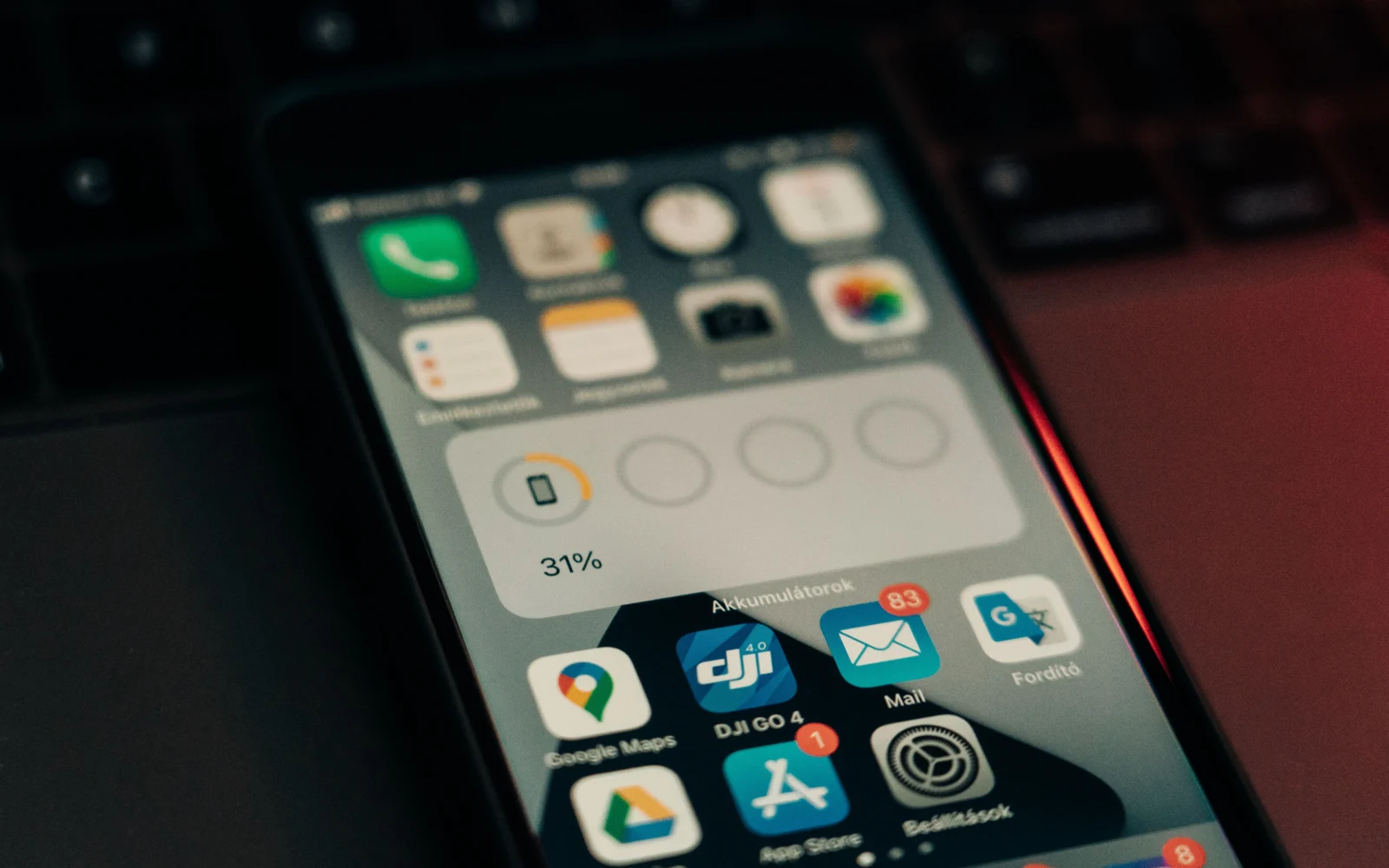
You open the app switcher, swipe everything away with a quick flick of your finger, and feel like you have just given your phone less work to do. This habit was once recommended as a simple way to save battery life and memory. Modern iPhones and Android phones, however, manage many processes automatically. What matters is an app’s actual activity, not the number of cards visible in the switcher.
No, routinely closing every recently used app manually does not usually save battery life. Both iPhone and Android manage memory and background activity on their own; the number of apps in the switcher does not mean they are all working at full capacity. Force-quitting makes sense when an app is frozen or has proven excessive battery use, not as a required ritual after every use.
What app cards in the switcher mean
When you swipe to open the list of recently used apps, you are mainly looking at an interface for returning to previous tasks. It is not a reliable list of every program currently placing an active load on the processor. The operating system can pause, restrict, or terminate processes without you having to remove them from the screen manually.
Some apps genuinely perform work in the background: navigation, music playback, recording, syncing, or specifically permitted system tasks. Others remain in memory ready to open quickly. These states are not the same, and the app switcher usually does not distinguish them in a way that lets you assess battery use from it.
Google states that Pixel phones automatically manage memory and battery even when you do not close apps manually. Apple explicitly notes in its iPhone guidance that quitting unused apps does not extend battery life. That does not mean, however, that every app is always free of issues.
Why constantly closing apps can create unnecessary work
When you open an app again, your phone may need to load its interface, restore a network connection, check its status, and process additional tasks. Returning to a paused app is often simpler because the device already has some data prepared. Actual battery use depends on the app and the system; not every restart is significantly energy-intensive.
Frequent swiping away is therefore not a proven battery-saving method. It can also make it harder to return to a form or task in progress. Some apps save their state, while with others you may lose unsaved content. Reopening apps offers no guaranteed benefit and can sometimes create unnecessary complications.
This widespread myth likely persists because visible app cards resemble “open windows” on a computer. Mobile operating systems, however, have managed memory and power differently from the start. Users therefore do not see the process’s complete technical state.
When force-closing an app actually makes sense
The clearest case is an app that has stopped responding. Apple recommends quitting and reopening it in exactly this situation. If the error keeps recurring, restarting the device, updating the app, or checking with the developer for a known issue may help. There is no need to blindly close every other app.
A second case is an app with unusual battery use. Modern systems provide a battery usage overview by app. If one app uses an excessive amount of power in the background, you can check its permissions, updates, and activity settings. With navigation or streaming, however, higher consumption may be a natural consequence of use.
A third case involves privacy or a security issue. If an app behaves suspiciously, simply closing its card is not automatically enough. You may need to revoke permissions, sign out of the account, check for updates, or uninstall it. Do not confuse security with battery consumption alone.
How to address battery drain on iPhone
In Battery settings, check which apps used power and whether this happened during active use or in the background. Interpret the record in context. If you spent two hours navigating or taking photos, high usage by the relevant app is not surprising. It is worth paying attention if an app is working heavily when you were not using it and you do not know why.
Check screen brightness, mobile signal strength, and the features you use. Unnecessary constant location refreshes or certain notifications can increase activity, but broadly disabling all permissions may prevent functions you want to keep enabled. Look for the specific cause in Settings rather than getting into the habit of closing everything regardless of the results.
If an app is frozen, follow Apple’s guidance: quit it in the app switcher and open it again. If the problem persists, check for available updates and restart the device if necessary. Daily preventive swiping away remains unnecessary.
How to address battery drain on Android
Android is available on devices from multiple manufacturers, so setting names vary. Pixel phones use Adaptive Battery and app optimization. Google recommends keeping these features enabled; the system gradually learns how you use your phone and restricts apps you use less often. This can sometimes delay a notification, so consider which apps need to run reliably in the background.
Look for the specific app in the battery usage overview. If its consumption seems unusual, check for updates and review its background activity settings. On Pixel phones, optimization can be managed for individual apps. However, it is not advisable to thoughtlessly restrict security apps, navigation, or communication tools from which you expect notifications.
Battery life is also significantly affected by the display, weak mobile signal, hotspot use, games, and demanding computations. If the phone began draining quickly immediately after an update, it may temporarily be performing finishing tasks. If the increased consumption persists, the manufacturer recommends diagnostics and checking specific processes.
What to do instead of swiping away all apps
First, measure the problem: review usage over a day, compare days with similar use, and monitor battery health as well. Then try one change at a time, such as adjusting brightness or updating the problematic app. Otherwise, you will not know what actually helped.
Likewise, do not confuse saving battery with freeing up storage. Removing a card from the app switcher does not delete photos, cache, or large files. If your phone reports low storage, manage data and apps through the relevant settings.
The conclusion is simple: let the operating system do the job it was designed to do. Look for specific anomalies and quit an app when you have a reason to do so. Regularly closing everything for peace of mind is not a battery-saving trick.
Sources
- Apple Support – Quit and reopen an app on iPhone – https://support.apple.com/guide/iphone/quit-and-reopen-an-app-iph83bfec492/27/ios/27
- Google Pixel Phone Help – Find, open & close apps on a Pixel phone – https://support.google.com/pixelphone/answer/2781964?hl=en
- Google Pixel Phone Help – Keep Adaptive Battery & battery optimization on – https://support.google.com/pixelphone/answer/7015477?hl=en

Gabriel Čatár
I'm interested in everyday things we encounter but don't always understand. From technology and personal finance to practical guides and fascinating facts about the world. At Offpitch, I focus on topics worth exploring in greater depth, checking the facts and explaining them in a clear, accessible way. My goal is to make sure readers take away something useful from every article.


