
You start a movie on Netflix and suddenly hear a different language than you expected, or subtitles appear on screen and distract you. Sometimes the issue is simply the player settings; other times, it is the language selection available for a particular title. The steps for finding the right subtitles differ slightly depending on whether you are watching on a TV, mobile device, or web browser.
You can adjust Netflix subtitles during playback in the “Audio & Subtitles” menu. On a mobile device or computer, tap or click the screen; on a TV, use the remote to bring up the playback controls. Then select your preferred subtitle language or the option to turn subtitles off. If your preferred language is not listed, it may not be available for that movie, episode, or device.
Subtitles on a TV: What Should You Press on the Remote?
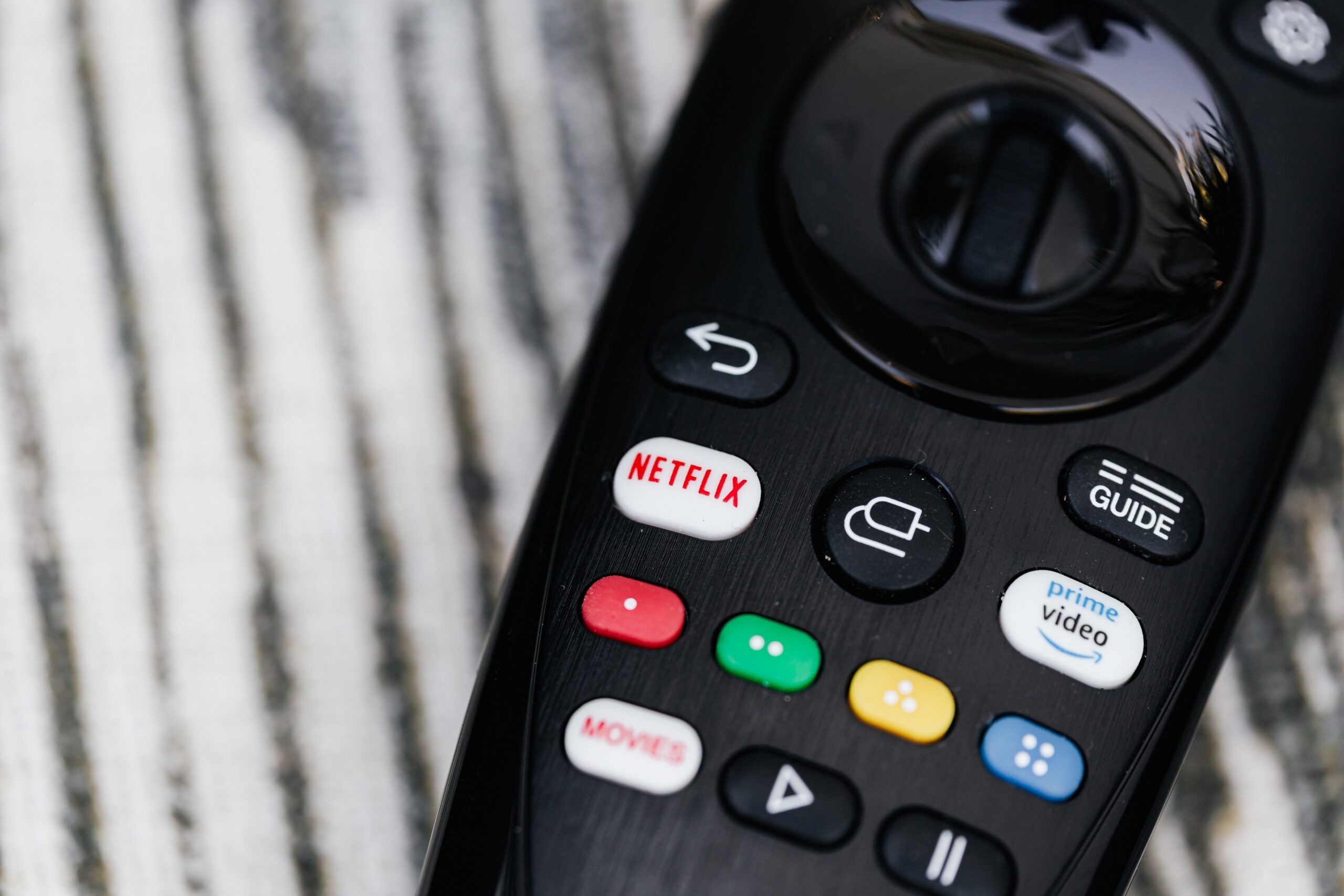
Open Netflix, start a movie or series, and bring up the playback controls. On many smart TVs and media players, you can do this by pressing the up or down arrow. Depending on the app version, an icon or a list of languages will appear at the bottom of the screen.
Select “Audio & Subtitles,” or choose “More” or “Other” if the language you want does not appear on the first screen. In the subtitles section, select the language you want to read. If you do not need subtitles, choose the available option to turn them off. The change takes effect during playback, and you do not need to restart the TV.
Some TV models display the menu differently. Depending on the player version, Apple TV may use a swipe gesture or the up arrow, while other devices use the remote’s arrow buttons. The exact location of the icon may therefore vary, but the principle is the same: look for language settings in the player, not in the TV broadcast settings.
How to Turn On Subtitles on a Mobile Device
In the Netflix app on an iPhone or Android device, open the selected movie and start playback. Tap the screen to display the controls. Choose “Audio & Subtitles” and select a language from the list. Return to playback and check that the subtitles have actually appeared or disappeared.
If you see English and German, for example, but not your preferred language, it does not automatically mean there is a problem with the app. Netflix does not offer every language for every title. Availability can also vary by country, licensing rights, or a specific season of a series. There is no need to repeatedly reinstall the app just because one language track is missing.
Also keep downloaded episodes in mind. Netflix states that downloaded titles may show only the two most relevant languages. If you need another one, try deleting the download while connected to the internet and opening the title from the online library. Then check the wider selection of languages.
Setting Up Subtitles on a Computer
Open Netflix in a browser, choose a profile, and start playback. Move the mouse or click to bring up the control panel. Use the audio and subtitles icon to select the language you want, or turn subtitles off. The setting will apply to the movie or episode being played.
If you open Netflix on another computer, you may not need to set everything up again, but it is not reliable to assume that every selection will be saved without exception across all devices. Preferences may be remembered differently for children’s titles. Netflix notes in its help guide that settings from an adult profile may not remain saved for some children’s titles.
Can You Set a Subtitle Language Permanently for an Entire Profile?
Netflix lets you adjust a profile’s preferred languages. In a web browser, go to your account, select the relevant profile, and choose “Languages.” There, you can set your preferred audio and subtitle languages. On a mobile device, you can access these preferences through “My Netflix,” profile management, and the relevant language settings.
However, this preference will not create subtitles that do not exist for a particular title. If your preferred language is available, the setting may help Netflix select it automatically more often. For series with different language selections across seasons, you may still need to check manually.
Do not confuse the interface language with the subtitle language. The menu language and subtitle language are two different things. Changing one setting may not automatically change the other.
How to Increase the Font Size and Adjust Subtitle Appearance
If subtitles work but are too small or blend into the image, change their appearance. In profile settings on the web, Netflix offers “Subtitle appearance,” where you can adjust the size, font, shadow, and background within the options provided by the service. On some TVs, you can also change the size and style directly in the player.
For the Netflix app on Android, Netflix states that appearance settings are available through profile management. On Apple devices, subtitle appearance may be adjusted through the system accessibility settings, depending on the device. Not every language or older TV supports every style. If an option is missing from the menu, it does not necessarily mean that the profile is damaged.
Subtitles labeled SDH are intended for people with hearing impairments as well. In addition to spoken dialogue, they may describe important sounds or music. This distinction is useful if you want to choose between a standard dialogue transcript and a more accessible version.
Why Aren’t Subtitles Available in Your Preferred Language?
The main reasons are usually available language rights, regional availability, the specific movie, and profile settings. For some series, older and newer seasons have different language selections. Sometimes a language is available for streaming but not for a downloaded copy. Even two episodes of the same series may therefore not always include identical language options.
First, set your preferred language in the profile and check “More” in the subtitle menu during playback. If you still do not see it, try another episode or open the title on another supported device. For downloaded content, test online playback. A VPN is not a guaranteed way to access subtitles: regional rights and service restrictions may vary.
If Netflix lists a language but the subtitles do not appear, try briefly turning subtitles off and on again, restarting playback, or using another device. Older apps and TVs may not support some languages or characters. If the issue occurs with only one particular title, the problem may lie with that title rather than with the whole account.
Frequently Asked Questions
Can You Turn On Dubbing and Subtitles at the Same Time on Netflix?
Yes, if the required language tracks are available for the selected title. Audio and subtitles are set separately, so you can have the original audio with subtitles in another language, or dubbed audio with subtitles in a different language. The exact selection depends on the title.
Why Do Subtitles Keep Turning On Again?
Check your profile’s language preferences and the choices directly in the player. Some foreign-language dialogue may have intentional subtitles even when general subtitle display is turned off. According to Netflix, the selected option for children’s titles may not always be remembered in the same way as it is for other content.
Why Can’t Subtitles Be Set Up the Same Way on a TV and Mobile Device?
Because apps and operating systems offer different controls and available styles. Look for the basic language setting in the player, but font size may be managed in the profile or device settings.
The Quickest Solution: Start the specific title, open “Audio & Subtitles,” and check the actual list of available languages. If your preferred language is missing, then check the profile language and, if applicable, the online version of a downloaded title. Not every movie has the same language catalog.
Sources
- Netflix Help Center – How to use subtitles, captions, or choose audio language – https://help.netflix.com/en/node/372
- Netflix Help Center – How to change the language on Netflix – https://help.netflix.com/en/node/13245
- Netflix Help Center – How to change the appearance of subtitles and closed captions – https://help.netflix.com/en/node/100267
- Netflix Help Center – Why subtitles or audio isn't available in a specific language – https://help.netflix.com/en/node/101798

Gabriel Čatár
I'm interested in everyday things we encounter but don't always understand. From technology and personal finance to practical guides and fascinating facts about the world. At Offpitch, I focus on topics worth exploring in greater depth, checking the facts and explaining them in a clear, accessible way. My goal is to make sure readers take away something useful from every article.


